What is 'Process administration' used for
Depending on the selected process level, such as process version, and the menu item, such as Context, various subinformation and functions are available.
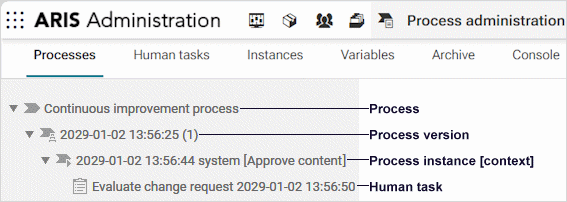
The superordinate menu items, such as Archive, display information for all processes. The menu items on process levels apply only to the selected entry.
Activities are displayed if you have selected a process instance of an executable process. It displays the activities of the executable process of the BPMN process diagram (BPMN 1.x) type. To skip an activity, move the mouse pointer over the relevant row, and click
 Skip activity.
The archived instances are listed. Use
 Show/hide filter to restrict the number of process instances displayed according to various criteria. You can export the data as a CSV file (
 ).
).To unarchive instances, move the mouse pointer over the relevant table row and click
 Unarchive selected instances. To permanently delete archived instances, move the mouse pointer over the relevant table row and click
  Delete.
To suspend archiving, unarchiving, or deletion, click Suspend in the progress dialog. Alternatively, you can use the suspend function in Archive history. Note that operations that have been already completed are not reverted. Example: An operation is running to archive ten instances. You suspend the operation after three instances have already been archived. Only the seven remaining instances are not archived.
To resume the operation, open Archive history, click Resume in the row of the previously suspended archiving execution. This is also helpful if an operation was suspended automatically, for example, during a backup.
Click Archive history to display the list of archiving executions (ARCHIVING, UNARCHIVING, DELETE). You can export the data as a CSV file (
).To avoid data inconsistencies and possible data loss, you must not perform any of the following activities in parallel, neither manually nor scheduled:
- Deleting any Process Governance process instance, process version, or process
- Archiving Process Governance process instances
- Backup/restore tenant (containing Process Governance or ARIS document storage data)
Assignments display the assigned users for a human task. To delegate a human task, move the mouse pointer over the relevant task, and click
 Delegate task.
The console can be shown for all processes or for a process instance. The following messages are displayed:
Log messages for process instance execution.
Messages that were generated by the user interface during execution of process instances (log, server, and user management messages). You can filter the messages by their severity.
You can export the data as a CSV file (
).The context and the process settings can be displayed for the process version or the process instance. The execution context determines from which items (database, group, model/object type, document), in which applications (for example, ARIS), and by which users a governance process can be started. You must specify the context before generating the executable process. After this, it can no longer be changed for the generated process version. If no execution context is defined, the governance process can be started for all items (Without context option). The defined execution context is displayed in
 Process administration. The context selected for the process instance is displayed in the navigation tree and under Instances.
History is displayed if you have selected a process instance of an executable process. Activities run by process instances are listed. If an entry contains a process instance with the Failed status, activities can be restarted from here, and Web service activities can be reset and restarted.
To display the input/output data or the simulation data for simulated activities, click the activity in the table.
To get additional details of an input activity, you can display the corresponding activity in the history table. In the row of the relevant input activity, click Show associated activity in the history. Alternatively, you can click Used by so that all activities for which the selected activity acts as an input activity are displayed.
Click Input variables or Output variables to show the values read (input) or stored (output) during execution of an activity.
Click Input data or Output data to check the data. Additionally, you can click
 Show details to display the XML data. For restartable failed activities the tracking ID is displayed.
The human tasks of all executable processes are displayed. Use
Show/hide filter to restrict the number of process instances displayed according to various criteria. You can sort the table by different columns, for example, by status. You can export the data as a CSV file ().To display a specific instance/version, move the mouse pointer over the relevant table row and click
 Display process instance or
  Display process version.
To display detailed information about a specific human task, move the mouse pointer over the relevant human task, then select
 Show details. Here, you can send a reminder to the executors. To check the assigned users and delegate a human task, click Assignments.
Statistics data in the form of charts for human tasks are available under ARIS Administration >
 Charts > Governance > Human tasks.
It provides an overview of the process instances and their various technical and business statuses. Use
Show/hide filter to restrict the number of process instances displayed according to various criteria. You can sort the table by different columns, for example, by status. You can export the data as a CSV file ().You can check if process instances failed so that you can correct and restart them, if required.
To display a specific instance/version, move the mouse pointer over the relevant table row and click
Display process instance or Display process version.To archive instances that have the status Completed, enable the relevant instances and click
 Archive selected instances.
Statistics data in the form of charts for Governance processes are available under ARIS Administration >
Charts > Governance > Processes.To avoid data inconsistencies and possible data loss, you must not perform any of the following activities in parallel, neither manually nor scheduled:
- Deleting any Process Governance process instance, process version, or process
- Archiving Process Governance process instances
- Backup/restore tenant (containing Process Governance or ARIS document storage data)
The variables can be shown for all processes, for a process version, or for a process instance. The variables used and their values are listed. You can export the data as a CSV file (
).You can edit externalized variables. To do so, move the mouse pointer over the relevant variable, then select
 Edit externalized variables. The changed values are applied only to process instances that are started after the change. For detailed information on how to create variables, refer to the online help in ARIS Architect.
To display the XML data of the variable value, click a variable in the table. To show the previous values of a variable including their timestamps, click History. Additionally, you can show the values read (input) or stored (output) during execution of an activity. Once you selected a variable in the table, you can use
Show details to display or hide Value as XML and History.