Assign a data source to a widget
You must first assign a data source to a widget before you can display the relevant content such as dimensions and measures.
You have quick access to various data sources, which are provided by default in the Data source panel of a widget.
Repository search
Use the result of a repository search as a source data.
ARIS Process Mining
Use data from ARIS Process Mining analyses.
ARIS data APIs
Connect to ARIS Risk and Compliance queries, spreadsheets, and analyses.
ARIS documents
Select an ARIS document from the ARIS document storage.
Web documents
Specify a URL to a web document or an ARIS service.
Data feeds
Select an existing data feed without the need to create a data feed. Alternatively, you can define a data feed that delivers processed data to a widget.
You can also configure the data source assignment manually if you want to use other data sources than those provided by default.
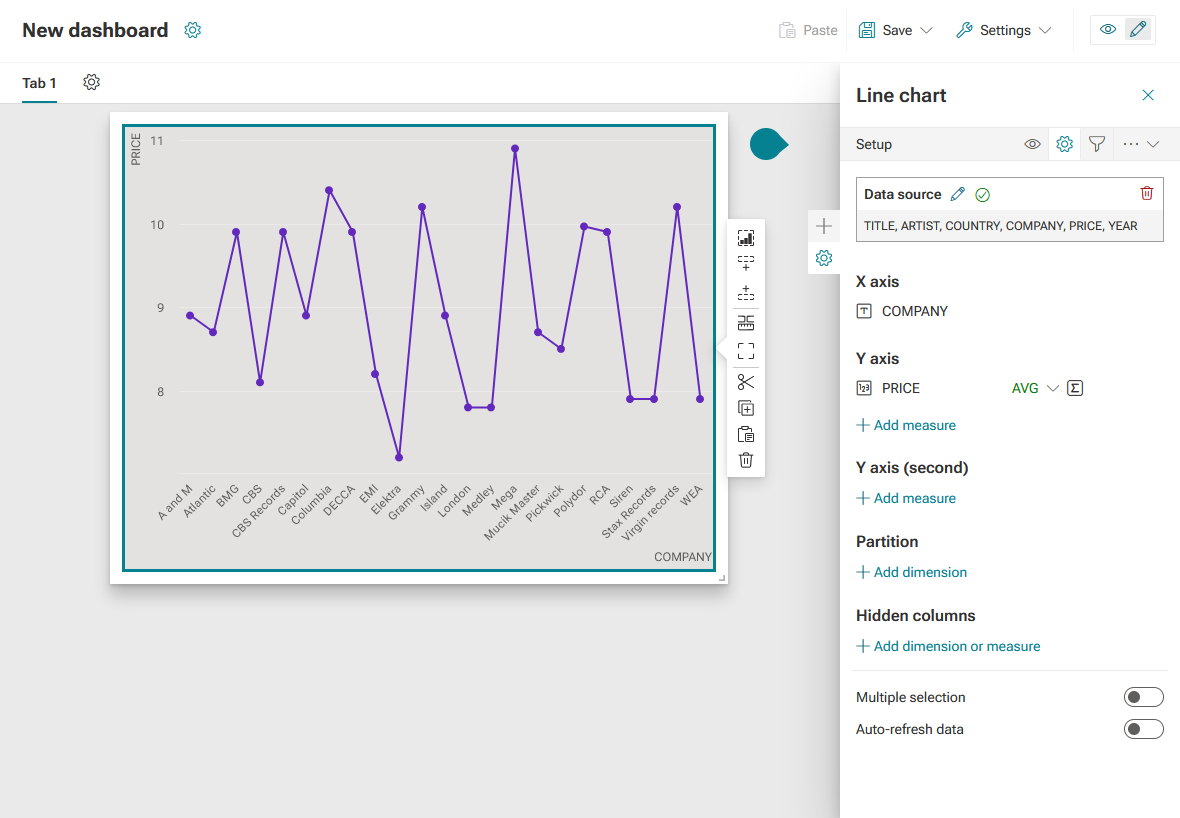
The  Setup panel of the Line chart widget enables you to select a data source.
After you specify a data source, the dashboard editor automatically analyses the assigned data source and provides the identified columns as criteria, such as dimensions and measures, for the widget. You can assign the criteria to the different elements of the widget, for example, to the X or Y axis or as hidden columns. If you want to replace the assigned data source, click  Delete in the Data source box in the Setup panel and select another data source.
The Line chart widget with an assigned data source, a dimension on the X axis, and a measure on the Y axis.
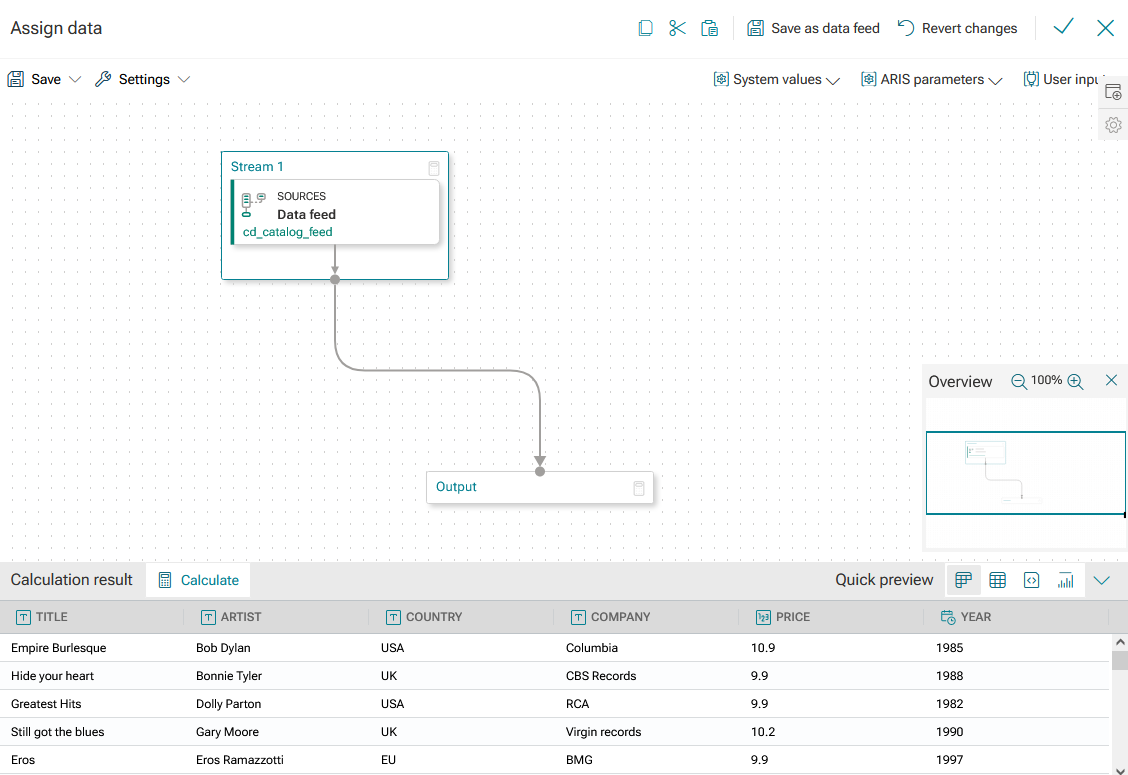
If you selected and configured a data source, a data feed is automatically created for the widget. The data feed combines and processes source data using various operators. You can configure the data feed in the same way as in the data feed editor. Click Edit in the Data source box in the Setup panel to edit the created data feed.
Data feed automatically created for the Line chart widget with a data feed selected as the data source.