Customize steps
You can configure global settings for steps.
You can configure global settings for steps.
Prerequisite
You have created your own modification set.
You have the Portal administrator function privilege.
Click
 Application launcher >
  Administration.
  Configuration is displayed.
Click Publication settings > Manage configuration sets. All available configuration and modification sets are displayed. You can edit the modification sets.
Click
 Edit in the row of the relevant modification set.
Click Components on the Define modification set page.
Click
Edit in the Steps row.Click Details. The Edit component page is displayed. Add or delete properties for processes, functions, and events and define their hierarchy.
Optional: Edit the properties of processes, functions, and events.
Move the mouse pointer over a property that you want to change.
Click
 Edit. The Select property template page is displayed.
Enable the Custom layout. If you keep the System layout, the properties cannot be changed.
Select a template from the Template list.
Optional: Select the label position from the list.
Optional: Click Browse to select an icon. The icon is displayed in front of the label.
Click
 Back. The Configuration and modification sets page is displayed.
Click
Back. The Configuration and modification sets page is displayed.
You have configured the steps on the Component tab.
To display ARIS with this modification set, select the new modification set for display.
You can exclude symbols from the Steps fact sheet.
Prerequisite
You have created your own modification set.
You have the Portal administrator function privilege.
Click
Application launcher > Administration. Configuration is displayed.Click Publication settings > Manage configuration sets. All available configuration and modification sets are displayed. You can edit the modification sets.
Click
Edit in the row of the relevant modification set.Click Components on the Define modification set page.
Click
Edit in the Steps row.Click Overview. The Excluded symbols page opens.
Click Add. The corresponding dialog opens.
Enter the first characters of the symbol name and select the symbol.
Press Enter.
Continue with steps six to remove additional symbols from the Steps fact sheet.
Click Add.
Click
Back. The Configuration and modification sets page is displayed.
You have excluded symbols from the Steps fact sheet.
To display ARIS with this modification set, select the new modification set for display.
You can include excluded symbols in the Steps fact sheet.
Prerequisite
You have created your own modification set.
You have the Portal administrator function privilege.
Click
Application launcher > Administration. Configuration is displayed.Click Publication settings > Manage configuration sets. All available configuration and modification sets are displayed. You can edit the modification sets.
Click
Edit in the row of the relevant modification set.Click Components on the Define modification set page.
Click
Edit in the Steps row.Click Overview. The Excluded symbols page opens.
Move the mouse pointer to the symbol you want to include in the Steps fact sheet again and click
 Delete.
Click
Back. The Configuration and modification sets page is displayed.
You have included symbols in the Steps fact sheet again.
To display ARIS with this modification set, select the new modification set for display.
You can add a group of independent properties.
Prerequisite
You have created your own modification set.
You have the Portal administrator function privilege.
Click
Application launcher > Administration. Configuration is displayed.Click Publication settings > Manage configuration sets. All available configuration and modification sets are displayed. You can edit the modification sets.
Click
Edit in the row of the relevant modification set.Click Components on the Define modification set page.
Click
Edit in the Steps row.Click Details. The Edit component page is displayed. Add or delete group properties for processes, functions and events, and define their hierarchy.
Click Add group. The Edit embedded sheet page is displayed.
Select a template from the Template list. You can specify different settings depending on the selected template.
Optional: Click Edit group properties to specify the group properties. The corresponding dialog opens.
Enter a name. You can specify the name in multiple languages.
Optional: Select the label position from the list.
Optional: Click Browse to select an icon. The icon is displayed in front of the label.
Click OK.
Click
Back. The Configuration and modification sets page is displayed.
You have added a group of independent properties to the steps of a component.
To display ARIS with this modification set, select the new modification set for display.
You can change the order of items or properties of the filter for the search.
Prerequisite
You have created your own modification set.
You have the Portal administrator function privilege.
Click
Application launcher > Administration. Configuration is displayed.Click Publication settings > Manage configuration sets. All available configuration and modification sets are displayed. You can edit the modification sets.
Click
Edit in the row of the relevant modification set.Click Components on the Define modification set page.
Click
Edit in the Steps row.Click Details. The Edit component page is displayed.
To change the order of the properties, click
 Up or
Up or  Down.
Down.Click
Back. The Configuration and modification sets page is displayed.
You have changed the order of items or properties of the filter for the search.
To display ARIS with this modification set, select the new modification set for display.
You can customize the text color.
Prerequisite
You have created your own modification set.
You have the Portal administrator function privilege.
Click
Application launcher > Administration. Configuration is displayed.Click Publication settings > Manage configuration sets. All available configuration and modification sets are displayed. You can edit the modification sets.
Click
Edit in the row of the relevant modification set.Click User interface.
Click Show advanced settings.
In the Fact sheets (Overview, Steps) customize the text colors.
In the Steps section, customize the colors.
Click Save.
You have changed the text color.
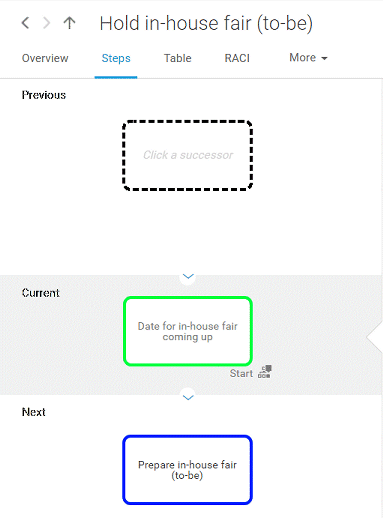
Default colors on Steps page:
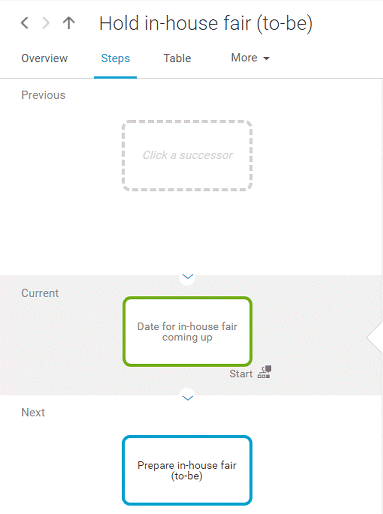
Customized colors on Steps page: