Customize diagrams
You can configure global settings for diagrams.
You can specify the name in different languages.
Prerequisite
You have created your own modification set.
You have the Portal administrator function privilege.
Click
 Application launcher >
  Administration.
  Configuration is displayed.
Click Publication settings > Manage configuration sets. All available configuration and modification sets are displayed. You can edit the modification sets.
Click
 Edit in the row of the relevant modification set.
Click Components on the Define modification set page.
Click
Edit in the Diagram row. The Edit component dialog opens.If you want to rename the Diagram component, click Edit in the Edit component property area. The dialog opens.
Change the name in the required languages. If you want to maintain more languages, click Show more languages. Enter the name in the desired languages.
Click OK.
Click
 Back. The Configuration and modification sets page is displayed.
You have specified the name in different languages for the Component tab.
To display ARIS with this modification set, select the new modification set for display.
You can specify the display options for the Diagram fact sheet.
Prerequisite
You have created your own modification set.
You have the Portal administrator function privilege.
Click
Application launcher > Administration. Configuration is displayed.Click Publication settings > Manage configuration sets. All available configuration and modification sets are displayed. You can edit the modification sets.
Click
Edit in the row of the relevant modification set.Click Components on the Define modification set page.
Click
Edit in the Diagram row. The Edit component dialog opens.
Diagram graphic size
Scroll to Display options.
Disable the Default display settings check box. This enables the subordinated controls for editing.
Enable the relevant option for the diagram graphic size.
If you select Fit to window, the zoom factor is selected such that the entire model is displayed.
If you select Fit width displays the model so that its full width can be seen.
If you select Fit height displays the model so that its full height can be seen.
If you select Defined size, you define the zoom factorwith which the model is displayed. You can enter a zoom factor between 1 and 200.
You have customized the display option of the diagram on the Component tab.
Enable/Disable the assignment filter
Scroll to Display options.
Disable the Default display settings check box. This enables the subordinated controls for editing.
Enable Filter by hierarchy configuration.
The diagrams show an assignment icon only for objects that have a diagram assigned to them which can also be accessed via the navigation hierarchy. For example, if a user-defined hierarchy includes value-added chains and processes only, the assignment icon is not displayed for functions to which only a model of the Function allocation diagram type is assigned.
Exclude linked models from navigation
Scroll to Display options.
Disable the Default display settings check box. This enables the subordinated controls for editing.
Click in the Assignment filter box and type a part of the model type name. The list of the possible model types are displayed.
Select the model type you want to exclude. You can exclude multiple model types. These model types are no longer displayed in the list of assignments if you want to navigate to assigned models in Published content using the assignment icons.
You have excluded model types from the navigation. Click Back. The Configuration and modification sets page is displayed.
You can specify that non-configured objects on the Diagram fact sheet are displayed as empty frames or are not displayed at all. Non configured-objects are objects that are not contained in the current method filter or are in groups for which the user does not have read privileges.
Prerequisite
You have the Portal administrator function privilege.
Click
Application launcher > Administration. Configuration is displayed.Click Publication settings > Manage configuration sets. All available configuration and modification sets are displayed. You can edit the modification sets.
Click
Edit in the row of the relevant modification set.Click Components on the Define modification set page.
Click
Edit in the Diagram row. The Edit component dialog opens.Scroll to the Display options area.
Disable the Default display settings check box. This enables the subordinated controls for editing.
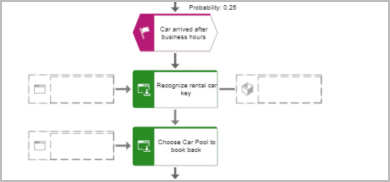
Disable the Hide non-configured objects check box. In this case non-configured objects are displayed as frames in the models.
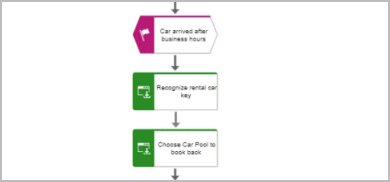
Enable the Hide non-configured objects check box. In this case non-configured objects are not displayed in the models.
Click
Back. The Configuration and modification sets page is displayed.
You have specified that non-configured objects in models are displayed as empty frames or are not displayed.
Hide non-configured objects functionality disabled:
Hide non-configured objects functionality enabled:
You can enable or disable the change view functionality.
Prerequisite
You have created your own modification set.
You have the Portal administrator function privilege.
Click
Application launcher > Administration. Configuration is displayed.Click Publication settings > Manage configuration sets. All available configuration and modification sets are displayed. You can edit the modification sets.
Click
Edit in the row of the relevant modification set.Click Components on the Define modification set page.
Click
Edit in the Diagram row. The Edit component dialog opens.Scroll to View generation.
Configure whether the Change view functionality is enabled. To do so enable Enable view generation.
Click
Back. The Configuration and modification sets page is displayed.
You have enabled/disabled the change view functionality of the diagram on the Component tab.
To display ARIS with this modification set, select the new modification set for display.
You can restore the ARIS default settings for the Diagram fact sheet.
Prerequisite
You have created your own modification set.
You have the Portal administrator function privilege.
Click
Application launcher > Administration. Configuration is displayed.Click Publication settings > Manage configuration sets. All available configuration and modification sets are displayed. You can edit the modification sets.
Click
Edit in the row of the relevant modification set.Click Components on the Define modification set page.
Click
Edit in the Diagram row. The Edit component dialog opens.Scroll to Restore default settings.
Click Restore default settings. The dialog opens.
Confirm the dialog by clicking Restore default settings.
Click
Back. The Configuration and modification sets page is displayed.
The ARIS default settings for the Diagram fact sheet of the component are restored.
To display ARIS with this modification set, select the new modification set for display.