Edit fact sheet
Manage fact sheets for your own modification set.
You can edit fact sheets.
Prerequisite
You have created your own modification set.
You have the Portal administrator function privilege.
Click
 Application launcher >
  Administration.
  Configuration is displayed.
Click Publication settings > Manage configuration sets. All available configuration and modification sets are displayed. You can edit the modification sets.
Click
 Edit in the row of the relevant modification set.
Click Fact sheets on the Define modification set page.
Move the mouse pointer to the item you want to change, for example, Process.
Click
 Edit. The Edit fact sheet page opens. All subordinate sheets shown on the fact sheet are listed.
Click Add. The Add subordinate sheet dialog opens. All sheets you can add are displayed. Typically, the sheets Overview, Steps, Table, RACI, Diagram, Tasks, Documents, and Dashboards are offered.
Select an entry and click Add.
Specify the contents to be displayed in the fact sheet.
Move the mouse pointer to the sheet you want to edit, for example, Dashboards.
Click
Edit. The page to edit the sheet opens.Make your settings.
Click
 Back. The Configuration and modification sets page is displayed.
To display ARIS with this modification set, select the new modification set for display.
You can customize fact sheets, such as Overview and Steps.
Prerequisite
You have created your own modification set.
You have the Portal administrator function privilege.
Click
Application launcher > Administration. Configuration is displayed.Click Publication settings > Manage configuration sets. All available configuration and modification sets are displayed. You can edit the modification sets.
Click
Edit in the row of the relevant modification set.Click User interface.
Click Show advanced settings.
Scroll down to Fact sheets (Overview, Steps).
Customize the colors and font sizes.
Click
Back. The Configuration and modification sets page is displayed.
You have customized the fact sheets of ARIS.
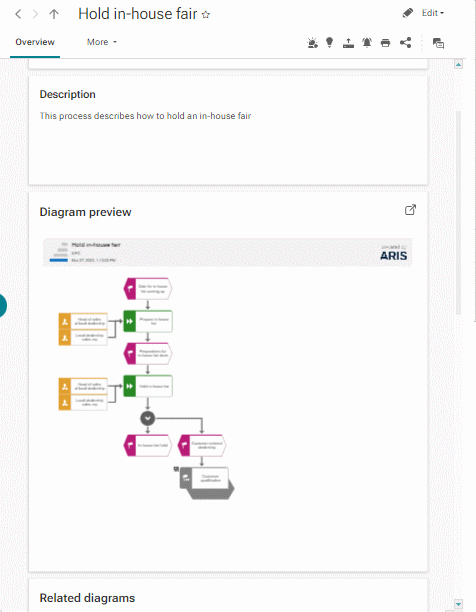
Default Overview fact sheet:
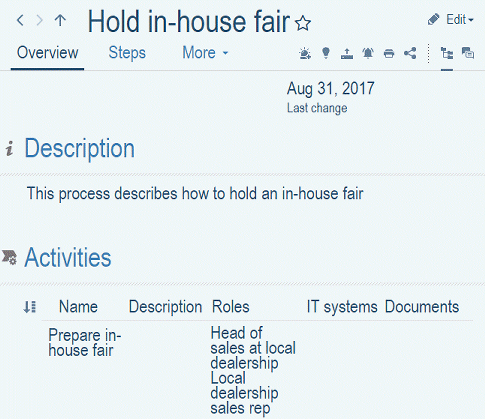
Custom Overview fact sheet:
You can customize the elements of the Home page.
Prerequisite
You have created your own modification set.
You have the Portal administrator function privilege.
Click
Application launcher > Administration. Configuration is displayed.Click Publication settings > Manage configuration sets. All available configuration and modification sets are displayed. You can edit the modification sets.
Click
Edit in the row of the relevant modification set.Click User interface.
Click Show advanced settings.
Scroll down to Tile elements (Quick start, Contact).
Customize the background color and the tile size, color, and font color.
Click
Back. The Configuration and modification sets page is displayed.
You have customized the Home page of ARIS.
Default Home page:
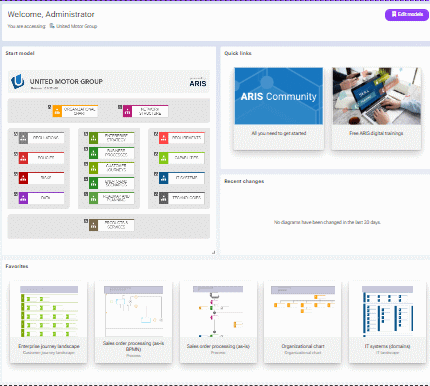
Customized Home page:
You can enable or disable toolbars for a fact sheet
Prerequisite
You have created your own modification set.
You have the Portal administrator function privilege.
Click
Application launcher > Administration. Configuration is displayed.Click Publication settings > Manage configuration sets. All available configuration and modification sets are displayed. You can edit the modification sets.
Click
Edit in the row of the relevant modification set.Click Fact sheets on the Define modification set page.
Move the mouse pointer to an item type, for example, chain. The item type should include Dashboard as a subordinate sheet.
Click
Edit. The Edit fact sheet page opens.Click Toolbars.
Enable/Disable the toolbars to be displayed on the fact sheet.
To display ARIS with this modification set, select the new modification set for display.
You can add a subordinate sheet to a fact sheet.
Prerequisite
You have created your own modification set.
You have the Portal administrator function privilege.
Click
Application launcher > Administration. Configuration is displayed.Click Publication settings > Manage configuration sets. All available configuration and modification sets are displayed. You can edit the modification sets.
Click
Edit in the row of the relevant modification set.Click Fact sheets on the Define modification set page.
Move the mouse pointer to an item type, for example, chain. The item type should include Dashboard as a subordinate sheet.
Click
Edit. The Edit fact sheet page opens. All subordinate sheets shown on the fact sheet are listed.Click Add.
Select a subordinate sheet from the list.
Click Add.
Click
Back. The Configuration and modification sets page is displayed.
To display ARIS with this modification set, select the new modification set for display.
You can the change the order of subordinate sheets.
Prerequisite
You have created your own modification set.
You have the Portal administrator function privilege.
Click
Application launcher > Administration. Configuration is displayed.Click Publication settings > Manage configuration sets. All available configuration and modification sets are displayed. You can edit the modification sets.
Click
Edit in the row of the relevant modification set.Click Fact sheets on the Define modification set page.
Move the mouse pointer to an item type, for example, chain. The item type should include Dashboard as a subordinate sheet.
Click
Edit. The Edit fact sheet page opens. All subordinate sheets shown on the fact sheet are listed.Move the mouse cursor over a subordinate sheet you want to move.
If you want to change the order of a subordinate sheet, click
 Up or
Up or  Down.
Down.If you want to move a subordinate sheet to the top, click
 Top.
Top.Click
Back. The Configuration and modification sets page is displayed.
To display ARIS with this modification set, select the new modification set for display. This configuration overwrites the globally defined order of the subordinate fact sheets.
You can remove a subordinate sheet from a fact sheet.
Prerequisite
You have created your own modification set.
You have the Portal administrator function privilege.
Click
Application launcher > Administration. Configuration is displayed.Click Publication settings > Manage configuration sets. All available configuration and modification sets are displayed. You can edit the modification sets.
Click
Edit in the row of the relevant modification set.Click Fact sheets on the Define modification set page.
Move the mouse pointer to an item type, for example, chain. The item type should include Dashboard as a subordinate sheet.
Click
Edit. The Edit fact sheet page opens. All subordinate sheets shown on the fact sheet are listed.Move the mouse pointer to the subordinate sheet you want to remove, for example, Overview.
Click
 Delete.
Click
Back. The Configuration and modification sets page is displayed.
To display ARIS with this modification set, select the new modification set for display.
Using fact sheets, you configure how the pages are displayed that open when you click a process in the navigation. The fact sheet for a process includes the subordinate pages you defined in the fact sheet configuration.
You find all information about configuration and use of dashboards in the ARIS Aware chapter.
You can enable mini fact sheet for an object.
Prerequisite
You have created your own modification set.
You have the Portal administrator function privilege.
Click
Application launcher > Administration. Configuration is displayed.Click Publication settings > Manage configuration sets. All available configuration and modification sets are displayed. You can edit the modification sets.
Click
Edit in the row of the relevant modification set.Click Fact sheets on the Define modification set page.
Move the mouse pointer over the item you want to change, for example, Function.
Click
Edit. The Edit fact sheet page opens. All subordinate sheets shown on the fact sheet are listed.Click Mini fact sheet.
Enable Enable mini fact sheets.
Click
Back. The Configuration and modification sets page is displayed.
You have enabled the mini fact sheet for an item.
To display ARIS with this modification set, select the new modification set for display.
You can customize the mini fact sheet for objects.
Prerequisite
You have created your own modification set.
You have the Portal administrator function privilege.
Click
Application launcher > Administration. Configuration is displayed.Click Publication settings > Manage configuration sets. All available configuration and modification sets are displayed. You can edit the modification sets.
Click
Edit in the row of the relevant modification set.Click Fact sheets on the Define modification set page.
Move the mouse pointer to an item type, for example, chain. The item type should include Dashboard as a subordinate sheet.
Click
Edit. The Edit fact sheet page opens. All subordinate sheets shown on the fact sheet are listed.Click Mini fact sheet.
Select a custom layout. If you keep the System layout, the properties cannot be changed.
Move the mouse pointer over the relevant property and click
Edit.Select a custom property template. If you keep the System template, the properties cannot be changed.
To add a new property group, click Add group. The Select group property template page is displayed. Adjust your settings. Click
Back. The Configuration and modification sets page is displayed.Click
Back. The Configuration and modification sets page is displayed.
You have customized the mini fact sheet of these objects.
To display ARIS with this modification set, select the new modification set for display.
You can change the order of the mini fact sheets for objects.
Prerequisite
You have created your own modification set.
You have the Portal administrator function privilege.
Click
Application launcher > Administration. Configuration is displayed.Click Publication settings > Manage configuration sets. All available configuration and modification sets are displayed. You can edit the modification sets.
Click
Edit in the row of the relevant modification set.Click Fact sheets on the Define modification set page.
Move the mouse pointer to an item type, for example, chain. The item type should include Dashboard as a subordinate sheet.
Click
Edit. The Edit fact sheet page opens. All subordinate sheets shown on the fact sheet are listed.Click Mini fact sheet.
Select a custom layout. If you keep the System layout, the properties cannot be changed.
Move the mouse cursor over the property you want to move.
If you want to change the order of a property, click
Up or Down.If you want to move a property to the top, click
Top.Click
Back. The Configuration and modification sets page is displayed.
You have changed the order of the mini fact sheets of these objects.
To display ARIS with this modification set, select the new modification set for display.
You can delete a property from a mini fact sheet of an object.
Prerequisite
You have created your own modification set.
You have the Portal administrator function privilege.
Click
Application launcher > Administration. Configuration is displayed.Click Publication settings > Manage configuration sets. All available configuration and modification sets are displayed. You can edit the modification sets.
Click
Edit in the row of the relevant modification set.Click Fact sheets on the Define modification set page.
Move the mouse pointer to an item type, for example, chain. The item type should include Dashboard as a subordinate sheet.
Click
Edit. The Edit fact sheet page opens. All subordinate sheets shown on the fact sheet are listed.Click Mini fact sheet.
Select a custom layout. If you keep the System layout, the properties cannot be changed.
Move the mouse cursor over the property you want to delete.
Click
Delete.Click
Back. The Configuration and modification sets page is displayed.
You have deleted a property from a mini fact sheets of this object.
To display ARIS with this modification set, select the new modification set for display.