Edit objects
You can insert optional hyphens in texts. These hyphens are displayed only when necessary when texts must be broken up due to, for example, resizing an object. Optional hyphens can be used for attribute texts and free-form texts. The following procedure describes an example use of optional hyphens for the name attribute of an object.
Open a model.
Click a selected object in the model. The name of the object is selected for editing.
Place the cursor at the position at which you want to insert an optional hyphen.
Press Alt + -. An optional hyphen is inserted and the placeholder for the optional hyphen is displayed (
 ).
).Insert optional hyphens wherever you want to separate the attribute value when you change the size of an object.
Click in the modeling background.
The text input box is closed and the optional hyphen placeholders are no longer displayed.
If you now change the size of the object so that the text requires a line break, the text is wrapped at the position of the optional hyphen, and a hyphen is automatically inserted at that position.
The purpose of optional hyphens is to specify separation points for longer words. Where required, automatic separation occurs at these points, and optional hyphens are inserted.
When entering an attribute text, for example, optional hyphens can be specified. They are indicated by a placeholder () during input. If, for example, optional hyphens are inserted for an object name, the name is automatically adjusted if the size of the object is changed.
You insert optional hyphens when entering the text:
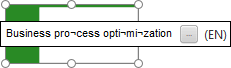
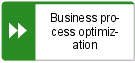
When you exit the entry by clicking in the model background, the name is separated.
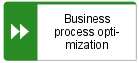
When you enlarge the object, the name is separated at a different place and provided with a hyphen. The previously displayed hyphens are removed.
You can change the symbol for selected objects if various symbols are available for them.
Prerequisite
The method filter in use includes different symbols of the objects you selected.
In an open model, click an object or hold the Ctrl key pressed to select multiple objects of the same type.
Click the Start tab bar if not already selected.
Click
 Change symbol. The list of object symbols available for the selected object(s) is shown.
Click the symbol you want to use from now on for the selected object/s in this model.
The symbol for the selected object is or the symbols of the selected objects are changed.
In an open model, you can place an object and determine its size at the same time.
Using the Symbols bar
In the symbols bar, click the object you want to place.
Move the mouse pointer to the modeling area, click, and hold down the mouse button.
Move the mouse pointer in the direction in which you want to resize the object. The position of the upper left object corner is the anchor point.
Release the mouse button when the object has the required size.
You have placed an object and determined its size at the same time.
Using the mini toolbar
In the mini toolbar, click the object you want to place.
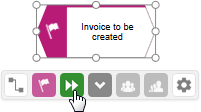
Place the preview frame of the object so that the upper left corner of the object is placed as an anchor point at the position you want.
Move the mouse pointer in the direction in which you want to resize the object.
Release the mouse button when the object has the required size.
You have placed an object and determined its size at the same time.
You can have objects selected in the modeling area. If the object is not located in the visible area of the modeling area, the visible area is moved and the object is displayed as selected in the visible area.
Click
 Search or press Ctrl + F. The Search bar opens.
Enter a part of the name or the entire name for the object to be found.
Click either
 Search down or
  Search up, depending on the direction in which you want to search for objects. The next object whose name contains the entered term is selected. If it is located outside of the visible area it is placed in the visible area.
Click
Search down or Search up again. The next object with the term in its name is selected.
Each time you click the up and down buttons the next occurrence is selected. If a corresponding object cannot be found in one direction, the first occurrence is selected again.