Configure user inputs
You can use User input operators as data input for the feed calculation at run time. User inputs are special single-value operators that can be used by other operators as additional parameters.
You can configure the following user inputs.
Text user input
Date user input
Number user input
Text user input (List)
Date user input (List)
Number user input (List)
You must first create the user input that you want to include in the data feed.
At the top of the feed editor, click User input -> Configure. The User input panel opens.
Click + User input. The Add user-defined input panel opens.
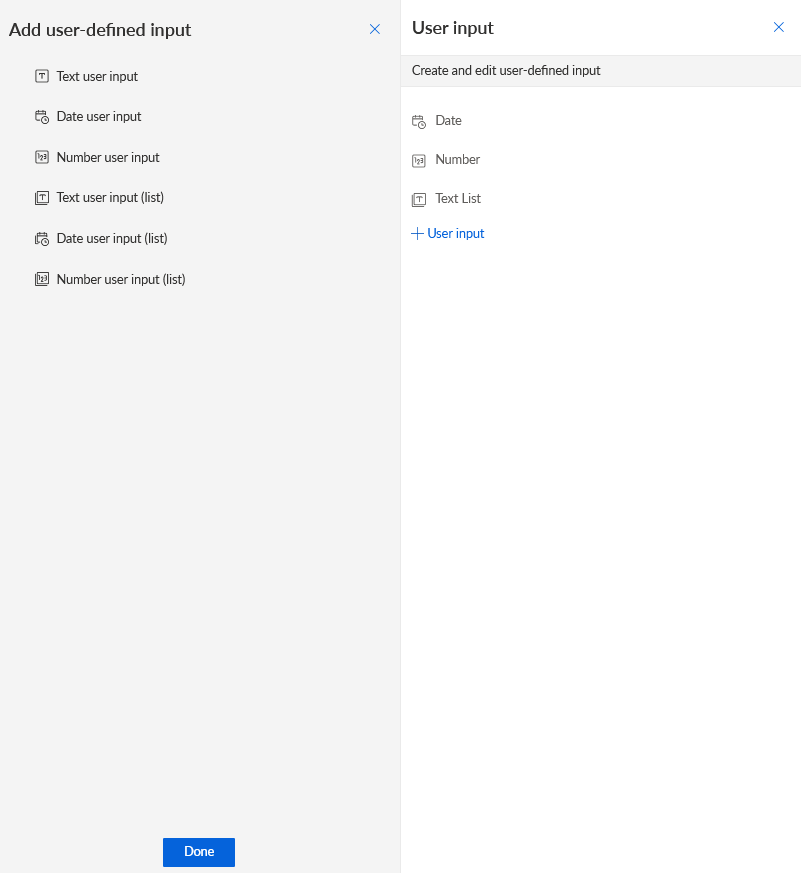
Select a user input, such as the Number user input.
Click Done. The selected user input is added to the User input panel.
Move the mouse pointer over the added user input in the User input panel and click
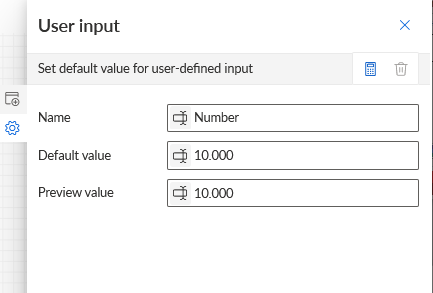
 Edit. The panel to configure the user input values opens.
Specify a name, a default value, and a preview value.
Example
Click Done.
The created user input is now available and can be used as a data input as described above. If the data delivered by the user input cannot be used directly, but is to be further modified, for example, formatted or encoded, the user input must be placed in a stream together with follow-up operators for the data modification. To add a user input to a stream, select the operator from the User input drop-down menu at the top of the feed editor.
Click User input at the top of the feed editor and select a user input, such as Date.
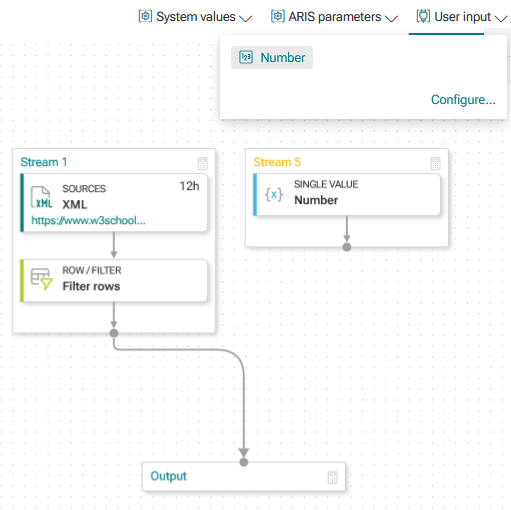
The user input operator is placed into a new stream in the data feed.
You can use the user input operator as data input for other operators.