Add widgets to a dashboard
You can add one or more widgets to a dashboard.
The current version of the new dashboard editor does not provide all the widgets that are available in the classic dashboard editor.
Open or create a dashboard.
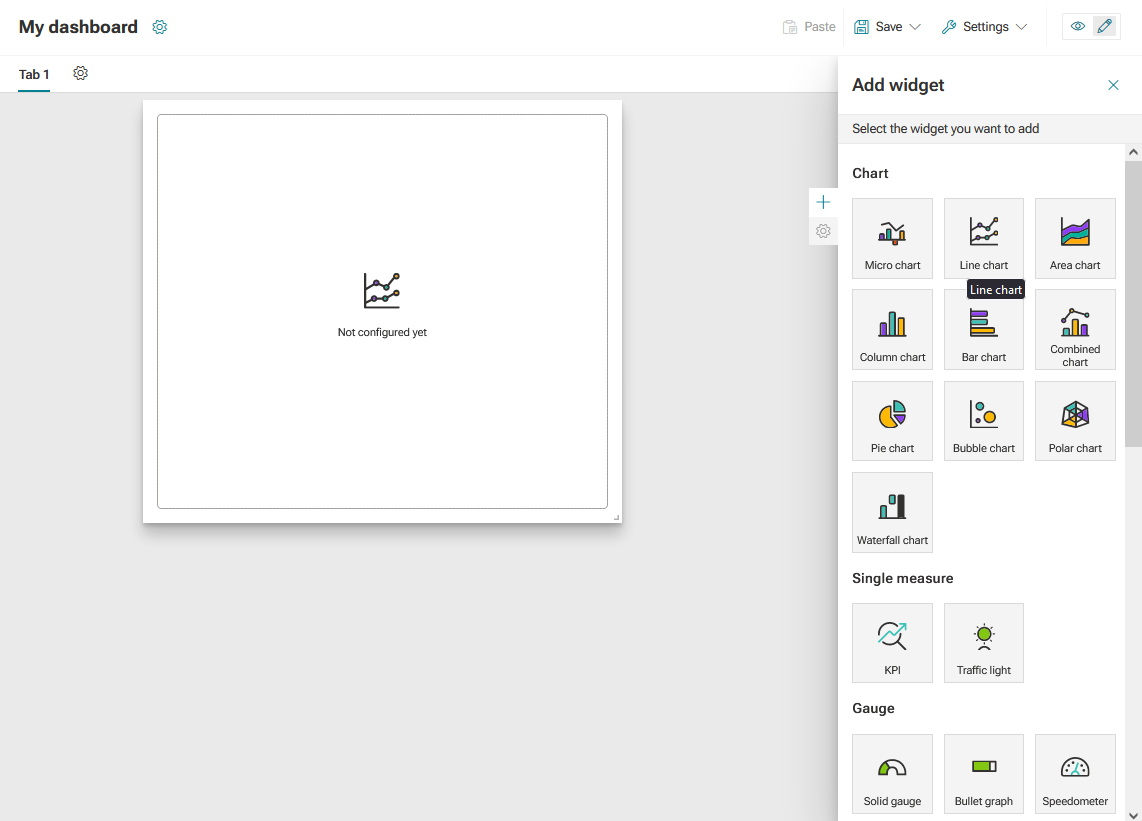
To open the Add widget panel, click the
 Add icon on the right side of the dashboard editor.
Click a widget in the Add widget panel, for example, a line chart. The selected widget is inserted into the dashboard as a blank box.
Example
To move a widget on the dashboard, click the widget, hold down the mouse button, and move the widget to the new location on the dashboard.
To adjust the size of the widget, click on the bottom right-hand corner of the widget, hold down the mouse button and move the mouse.
The selected widget is placed on the dashboard.
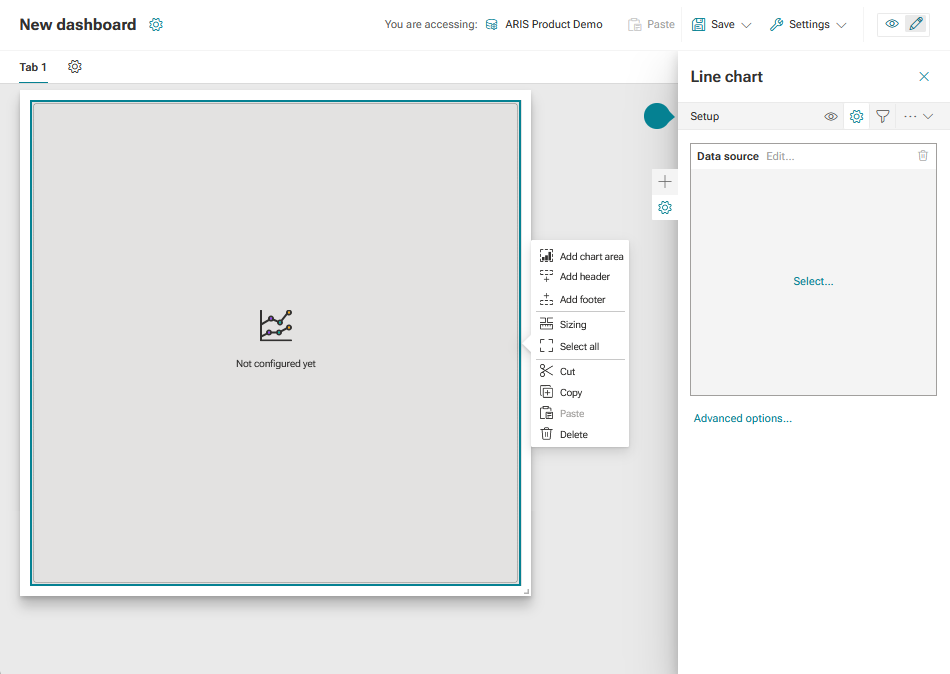
When you add a new widget or select a widget in the dashboard, the  Setup panel of the widget is displayed. Here you can specify the relevant widget settings. In addition, a side panel is displayed next to the widget, which contains various options for editing and configuring the widget. Move the mouse pointer over the side panel to display the entire panel.
The Line chart widget as a blank box with the corresponding Setup panel and configuration side panel. No data source is assigned to the widget yet.