Navigate using the Diagram fact sheet
You can use the model overview to navigate to different areas of a model.
The model overview is placed at the bottom right. The light gray area of the model overview shows the visible area of the model. When you change the resolution of the model, the size of the light gray area also changes.
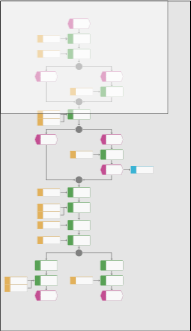
Click the light gray area and hold down the mouse key.
Drag the mouse pointer in the direction of the model section you want to bring into the visible area.
Release the mouse button when the relevant model section is visible.
You have navigated to the relevant model section.
There is a special navigation for lane models.
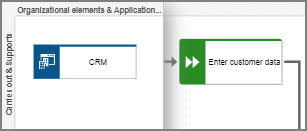
The first row or column of a swimlane model remains visible even if the model content is moved. If the content is moved next to the first row or column so that it is no longer visible, a shaded separator appears. In the example graphic, the content next to the first column was moved to the invisible area.