Use satellite modeling
If the content type configuration is enabled, use the modeling component properties page to add satellites to selected structurally relevant objects, display them in the model, or delete existing connections to satellites.
Satellites are objects that do not belong to the structurally relevant objects of a model but add additional information to the model.
For example, in an EPC you can connect organizational units as satellites to an object of type Function instead of modeling and assigning a function allocation diagram to the function.
You can create a new connection from the selected structurally relevant object to a new satellite. Note that the items and names mentioned in the following procedure are examples.
Open a model.
Select an object in the model, for example, a function.
Click
 Details. The Details bar opens. The grouped connections are displayed, for example RA(S)CI, which you can use to model responsibilities.
Click the
 right arrow of RA(S)CI to display the connections.
Move the mouse pointer over the connection Informed. The
 Create button is displayed.
Click
Create. The organizational elements are displayed.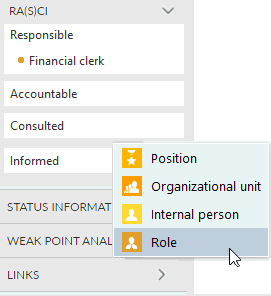
Click Role. The object is inserted and you can enter a name.
Enter Head of department and click Create.
The connection between the selected item and the object is created. The connected satellite is not displayed in the model. The advantage is that the additional information from the satellite is assigned to the function without changing the model layout. You also have the option to display the satellite in the model, if required.
You can create a new connection from the selected structurally relevant object to a new satellite. Note that the items and names mentioned in the following procedure are examples.
Open a model.
Select an object in the model, for example, a function.
Click
Details. The Details bar opens. The grouped connections are displayed, for example RA(S)CI, which you can use to model responsibilities.Click the
right arrow of RA(S)CI to display the connections.Move the mouse pointer over the connection Informed. The
Create button is displayed.Click
Create. The organizational elements are displayed.Click Role. The object is inserted and you can enter a name.
Enter at least two letters from the name of an existing object, for example, fi. All objects of Role type that contain fi in their names are listed.
Click the object you want to connect.
Click Create.
The connection between the selected item and the object is created. The connected satellite is not displayed in the model. The advantage is that the additional information from the satellite is assigned to the function without changing the model layout. You also have the option to display the satellite in the model, if required.
You can display the details of the connection or the connected satellite on the Properties tab of the Details bar. Note that the items and names mentioned in the following procedure are examples.
Open a model.
Select the object in the model for which you want to display the connected satellites.
Click
Details. The Details bar opens.The grouped connections are displayed, for example RA(S)CI, which you can use to model responsibilities.
Click the
right arrow of RA(S)CI to display the connections.Move the mouse pointer over the satellite for which you want to display the details. The
 More button is displayed.
Click
More >  Show connection details to view the connection details.
Click
More > Show object details to view the details of the satellite.
The details of the connection or the satellite are displayed.
You can display satellites in the model. Note that the items and names mentioned in the following procedure are examples.
Open a model.
Select the object in the model for which you want to display a connected satellite.
Click
Details. The Details bar opens.The grouped connections are displayed, for example RA(S)CI, which you can use to model responsibilities.
Click the
right arrow of RA(S)CI to display the connections.Move the mouse pointer over the satellite you want to display in the model. The
More button is displayed.Click
More >  Place relation.
An occurrence copy of the satellite is placed in the model and connected to the selected object. If you delete the occurrence of a satellite displayed in this way directly in the model, the connection between the object and the satellite is preserved and you can display it again.
Model types
The following model types support satellite modeling:
BPMN process
BPMN subprocess
Data model
Event-driven process chain (EPC)
Organizational chart
Process landscape
Structuring model
System diagram
Object types
The following object types support satellite modeling:
Function
Cluster/Data model
Entity type
Organizational unit
Position
Person
System
You can delete a displayed satellite from a model. Note that the items and names mentioned in the following procedure are examples.
Open a model.
Select the object in the model for which you want to delete the connected satellite from the model.
Click
Details. The Details bar opens.The grouped connections are displayed, for example RA(S)CI, which you can use to model responsibilities.
Click the
right arrow of RA(S)CI to display the connections.Move the mouse pointer over the satellite you want to delete from the model. The
More button is displayed.Click
More >  Delete to delete the connection to the satellite.
The connection to the selected object is deleted. If the occurrence of the satellite is displayed in the model, the occurrence is removed from the model.
Tip
If you only want to remove the occurrence of a satellite from the model, delete the occurrence directly in the model. This keeps the connection between the object and the satellite.